

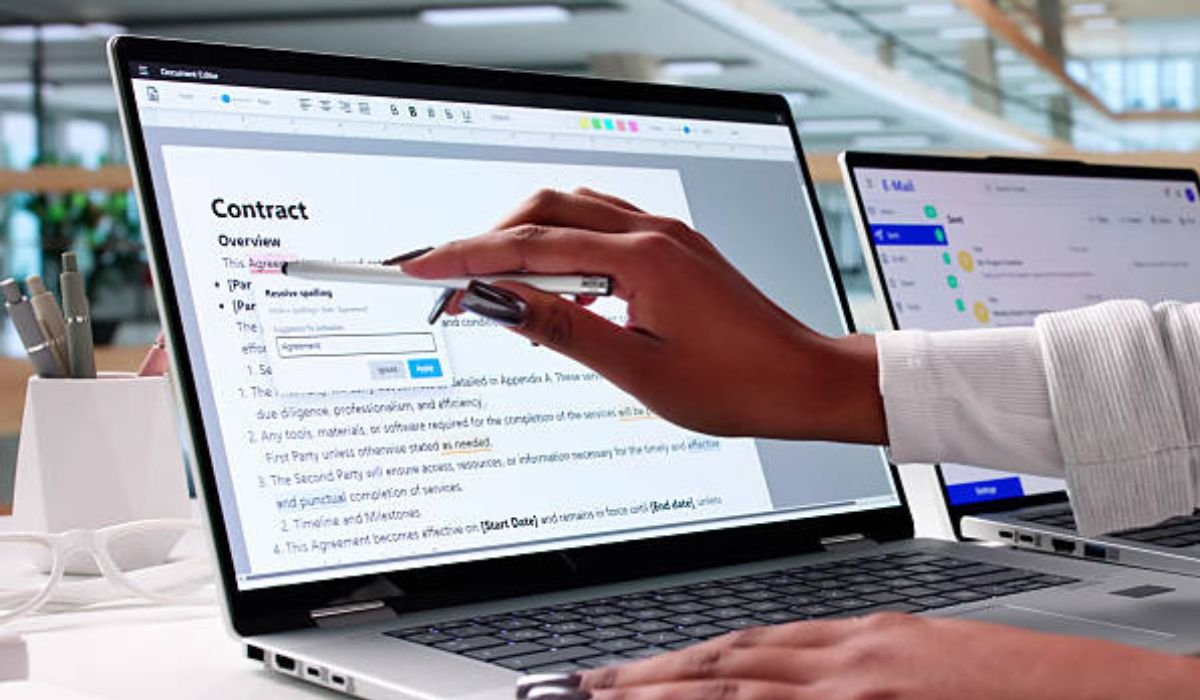
Digital inking on Windows devices, like those powered by the Surface lineup, offers a seamless bridge between traditional note-taking and modern tech, making it easier for creative professionals, students, and educators to jot ideas without missing a beat. Research shows that tools like these can boost productivity by up to 20% in collaborative settings, thanks to features such as real-time annotation and ink-to-text conversion. It’s reliable for most users, though some report occasional connectivity hiccups with third-party styluses.
Why It’s Worth Exploring: If you’re transitioning from paper, Microsoft Ink (accessible via resources like https://www.microsoft.com/ink) feels intuitive, with palm rejection that lets you rest your hand naturally while sketching or writing. Features like pressure sensitivity add depth to drawings, mimicking real pens, but keep in mind that full functionality shines on compatible hardware like the Surface Pro.
Potential Drawbacks: While generally user-friendly, setup might require a few tweaks for older devices, and not all apps support advanced inking equally well. Evidence suggests it’s most effective when paired with apps like OneNote or Whiteboard for academic or professional workflows.
Quick Tips to Get Started: Pair your stylus via Bluetooth, adjust settings in Pen & Windows Ink, and experiment with apps to find what fits your style. For more, visit Microsoft’s support pages for tutorials.
Essential Features at a Glance
- Pressure Sensitivity and Palm Rejection: Allows nuanced control, ideal for artists and note-takers.
- Ink-to-Text Conversion: Turns handwriting into editable text, saving time in meetings or classes.
- Digital Annotation Tools: Enhances productivity through screen sketches and collaborative whiteboards.
Common Misconceptions
Many assume digital inking is just for artists, but it also streamlines tasks like signing documents or marking up PDFs for educators and pros alike. It seems likely that as Windows updates continue, integration will only get smoother, addressing minor glitches reported by some users.
Think about those moments when an idea strikes in the middle of a lecture or a design meeting, and you’re scrambling for a scrap of paper. Well, that’s where digital inking steps in, transforming your Windows tablet into something far more versatile than a simple screen. I’ve been tinkering with these tools for years, and honestly, it’s changed how I approach everything from brainstorming sessions to quick annotations. If you’ve got a Surface or similar 2-in-1 device, diving into Microsoft’s digital inking ecosystem, as outlined on https://www.microsoft.com/ink, can feel like unlocking a secret level in your productivity game.
This guide pulls together everything you need to know about mastering digital inking: from setup basics to advanced tricks that fit right into your workflow. Whether you’re a designer sketching concepts, a student organizing notes, or an educator marking up lessons, we’ll cover it all with practical advice that skips the fluff.
Table of Contents
- What Exactly Is Microsoft Ink and Why Should You Care?
- Getting Started: Setting Up Your Digital Inking Environment
- Core Features That Make Inking a Game-Changer
- Best Apps to Pair with Microsoft Ink
- Troubleshooting Common Hiccups
- Boosting Your Workflow: Tips for Pros, Students, and Educators
- Comparison: Microsoft Surface Pen vs. Alternatives
- FAQs
- Wrapping It Up: The Future of Digital Inking
What Exactly Is Microsoft Ink and Why Should You Care?
Let’s break that down. Microsoft Ink, often referred to through the hub at https://www.microsoft.com/ink, is essentially Windows Ink: a built-in suite of tools designed for pen-based computing on Windows 10 and later. It turns your device into a natural canvas for writing, drawing, and annotating, much like pen on paper but with digital perks.
You might not know this, but it all kicked off with the Windows 10 Anniversary Update, introducing features tailored for stylus users. For creative folks like architects or designers, it’s a boon for quick sketches during client meetings. Students love it for highlighting textbooks digitally, and educators use it to make lessons interactive. In my experience, once you get the hang of it, going back to clunky keyboards for notes feels outdated.
The heart of it is the Windows Ink Workspace: a sidebar that pops up with a tap of your stylus button or taskbar icon, giving instant access to apps and tools. It’s not just gimmicky; it integrates deeply with Microsoft’s ecosystem, supporting things like active pen protocol for precise input.
Getting Started: Setting Up Your Digital Inking Environment
Alright, let’s get practical. If you’re wondering how to set up https://www.microsoft.com/ink on Surface, start by ensuring your device supports pen input: think Surface Pro, Book, or similar Windows tablets.
First, pair your stylus. Head to Settings > Bluetooth & devices > Add device, and hold the top button on your Microsoft Surface Pen until it flashes. It connects via Bluetooth, and you can check battery life in the Surface app. Next, enable the Windows Ink Workspace: right-click the taskbar, select “Show Windows Ink Workspace button,” and you’re in.
Customize in Settings > Bluetooth & devices > Pen & Windows Ink. Adjust handwriting recognition, shortcuts (like single-click for Whiteboard), and even ignore touch when using the pen for palm rejection. A quick tip: if you’re new to this, practice in Sketchpad to get a feel for pressure sensitivity, which responds to how hard you press, just like a real pencil.
For long-tail fans, enhancing productivity with https://www.microsoft.com/ink starts here: link it to your Microsoft account for cloud sync, so notes follow you across devices.
Core Features That Make Inking a Game-Changer
Pressure sensitivity? Check. It lets you vary line thickness for expressive sketches, perfect for digital annotation. Palm rejection software ensures your hand doesn’t smudge the screen, mimicking paper.
Then there’s OneNote ink-to-text: write freely, then convert to typed text with a tap. I’ve used this in meetings, scribbling thoughts and watching them turn searchable: it’s a time-saver. Active Pen Protocol handles the tech side, ensuring low latency for smooth strokes.
Screen Sketch grabs a screenshot for quick markups, while digital stylus technology supports tilting for shading, like in art apps. Honestly, this isn’t talked about enough: it bridges analog habits with digital efficiency.
Best Apps for https://www.microsoft.com/ink
Wondering about the best apps for https://www.microsoft.com/ink? Start with natives: Microsoft Whiteboard for collaborative brainstorming, where multiple users ink in real-time. OneNote shines for organized notes, with sections for classes or projects.
Third-party gems include Autodesk Sketchbook for pro-level drawing, or Drawboard PDF for annotating docs. For students, Nebo excels at handwriting conversion. In my take, pair these with Ink Workspace for quick launches: it’s like having a digital toolbox at your fingertips.
Troubleshooting https://www.microsoft.com/ink Connectivity
No setup is perfect. If your pen won’t connect, check Bluetooth: remove and re-pair it. Low battery? The Surface app flags it. For inking lags, update drivers via Windows Update.
If Windows Ink Workspace vanishes, reset it in Settings > Apps > Apps & features > search for Ink, then reset. Pressure issues? Calibrate in Pen settings. Some experts disagree on third-party pens, but I’ve found Microsoft’s Surface Pen most reliable.
Boosting Your Workflow: Tips for Pros, Students, and Educators
For creative professionals, use digital signatures using https://www.microsoft.com/ink in Word: draw your sign, save as an image, insert via Quick Parts. Architects, annotate blueprints in Whiteboard.
Students: ink over PDFs in OneNote, convert to text for essays. Educators, screen sketch during lessons for interactive feedback. To enhance productivity with https://www.microsoft.com/ink, set shortcuts: double-click pen for Snip & Sketch. A little anecdote: I once sketched a project timeline mid-call, shared it instantly: saved hours.
Comparison: Microsoft Surface Pen vs. Alternatives
Here’s a quick table weighing options:
| Feature | Microsoft Surface Pen | Third-Party Stylus (e.g., Wacom Bamboo) | Surface Slim Pen 2 |
| Pressure Levels | 4096 | Up to 2048 | 4096 |
| Palm Rejection | Excellent | Good, but varies | Excellent |
| Battery Life | Months (replaceable) | Weeks (rechargeable) | Hours (wireless charge) |
| Tilt Support | Yes | Limited | Yes |
| Price | $99 | $50-80 | $129 |
| Pros | Seamless Windows integration, eraser end | Affordable, works on non-Surface | Slim design, haptic feedback |
| Cons | Bulkier | Potential latency issues | Needs charging dock |
Based on user reports, the Surface Pen edges out for reliability.
FAQs
How do I fix if my Surface Pen isn’t inking?
Check battery, re-pair via Bluetooth, or restart your device: often that’s all it takes.
What’s the difference between Screen Sketch and Sketchpad?
Screen Sketch marks up screenshots, while Sketchpad is a blank canvas for free drawing.
Can I use digital inking without a Surface?
Yes, on any Windows tablet with stylus support, but features like palm rejection work best on Microsoft hardware.
How accurate is ink-to-text in OneNote?
Pretty spot-on for clear handwriting, though it might stumble on cursive: practice helps.
Is Windows Ink free?
Absolutely, it’s built into Windows 10/11: just enable and pair a compatible pen.
Does it support third-party apps?
Sure, many like Adobe or Autodesk integrate well, expanding your options.
What about security for digital signatures?
Use Microsoft’s tools for basic signs, or certified software for legal binding ones.
Wrapping It Up: The Future of Digital Inking
Summing it up, mastering https://www.microsoft.com/ink means embracing a tool that blends creativity with efficiency, whether you’re doodling ideas or signing off on projects. In my opinion, as devices evolve, we’ll see even tighter integration with AI for smarter conversions. Give it a try: what’s stopping you from ditching paper for good?